 InkCraft
Try a tattoo on your photo — free, in your browser, no download
By InkCraftUpdated
See any tattoo on your own skin, free, in your browser
InkCraft's free tattoo try-on runs right here in your browser: it is the editor above this text. Choose a sample body or use a photo of yourself, pick a design, and put the tattoo on the photo in seconds. The design wraps around the shape of your body rather than being pasted flat, so what you see is close to how the tattoo would actually sit.
It is built for one decision: where, and how big. Most regret about a tattoo is not the design, it is the placement and the scale. Seeing the piece on your own forearm at the real size, before anyone touches a needle, is the cheapest way to get that decision right.
No app, no download, no account
Everything happens in the browser tab you already have open. There is no download, nothing to install and no signup. You do not give an email address. You will be asked once to confirm you are not a robot, because the processing behind the preview costs real computing and that check is what keeps the service free.
It works the same on a phone as on a laptop. Most people open it on a phone, take a photo of the spot they are thinking about, and try designs on it there and then. People search for this as a tattoo simulator, a virtual try-on or a way to put a tattoo on a photo; it is all the same tool.
How it works
Choose a photo
Start with one of the sample bodies, or use a photo of yourself. JPEG, PNG or WebP, up to 10 MB. A clear, well-lit shot of the body part you are thinking about works best.
Pick a design and place it
Choose a design from the library, drag it onto your skin, then adjust size, rotation and opacity. The design bends around your body instead of sitting flat on top of it.
Export the preview
Save the result as a PNG to keep, send to a friend or show your artist. No account, no payment, and you can start again with another design straight away.
This try-on, in numbers
- Price
- Free. No account, no email, no trial that expires.
- Runs in
- Any browser with WebGL 2, on a phone or a computer. Nothing to install.
- Your photo
- JPEG, PNG or WebP, up to 10 MB. Location and camera data are removed in your browser before upload.
- Sample bodies
- Five, ready to use without uploading anything.
- Design library
- 788 designs, sorted by style. Any design on the tattoo idea pages opens here directly.
- Controls
- Drag to place; size, rotation, opacity, ink darkness and how strongly the design wraps; several designs on one photo.
- Export
- PNG, with a small InkCraft mark in the corner.
- Photo storage
- None. Used for one request, deleted from server memory when it ends, never written to disk.
- Limits
- Five new photos per ten minutes per connection; unlimited designs on a photo once it is ready. A short "not a robot" check runs before processing.
Browse the library, or come from an idea page
The design library is sorted by style: fine line, blackwork, traditional, geometric, watercolour, lettering and more. Pick one, place it, then swap it for another without starting over, so comparing three candidates on the same spot takes a minute.
The tattoo idea pages on this site link straight into the editor. Tap any design on the rose, snake or hand page and it arrives here already selected, so browsing and trying on are one motion. Every design on those pages was drawn for InkCraft. Uploading a design of your own is something the iOS app does; the website keeps to the library.
Where it goes: any placement your photo shows
There is no fixed list of body parts. You drag the design to wherever you want it on the photo, so a forearm, a wrist, the top of a shoulder, the ribs, a thigh, a calf, the back of a hand or the side of the neck all work, provided the photo shows that area clearly. Each of those links opens a page of designs photographed on that body part, with notes on how it wears, heals and hurts. Photograph the exact spot you are considering, in decent light, without heavy shadows across it.
Once placed, you can resize, rotate and fade the design, adjust how strongly it bends around the body, and add a second or third design to try a small cluster or a matched pair.
How realistic the preview is
When you use your own photo, the editor first works out the three-dimensional shape of the body in it. The design is then draped over that shape, so lines curve where the arm curves and foreshorten where the surface turns away, and the shading of your skin shows through the ink the way it does on a healed tattoo.
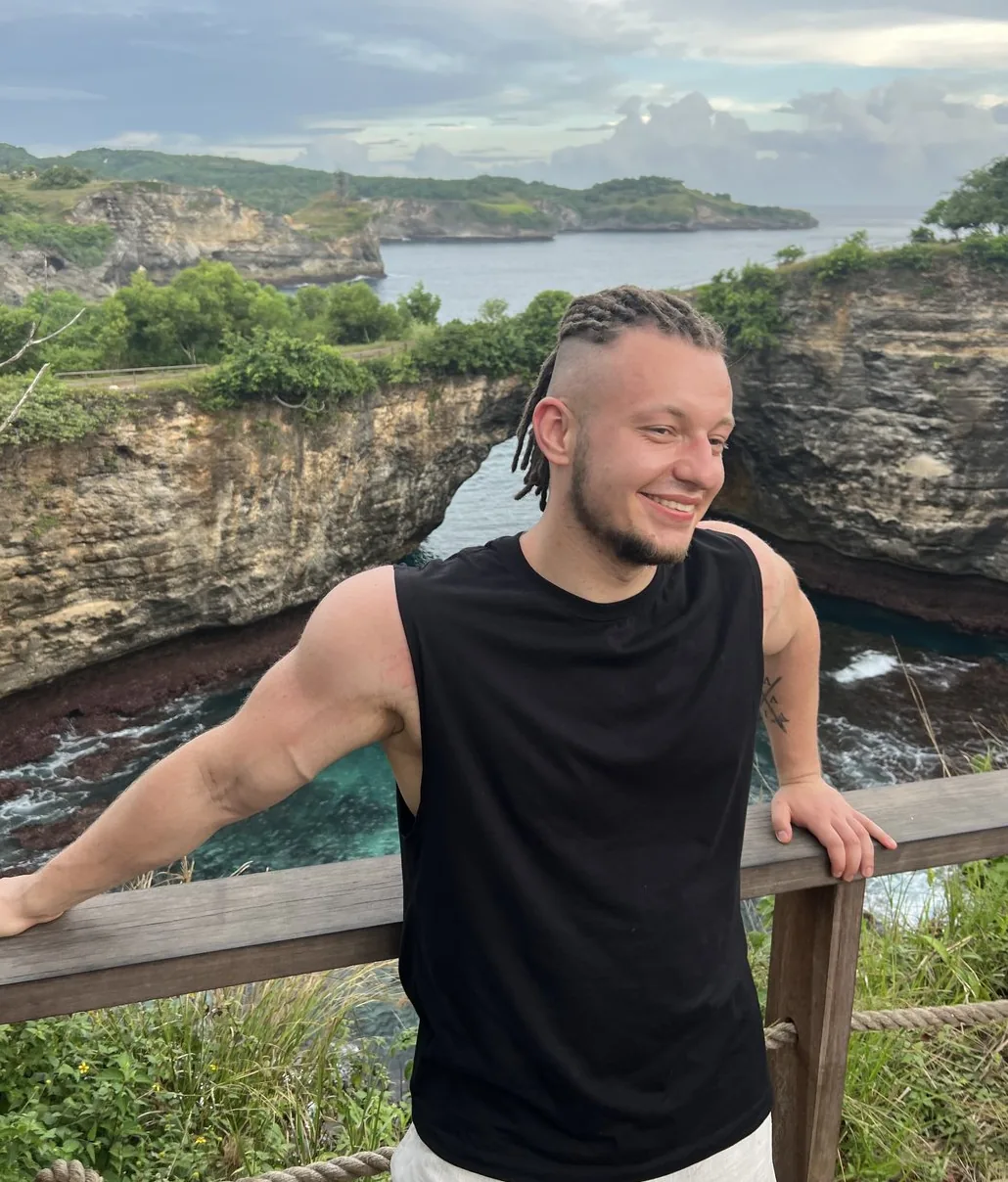
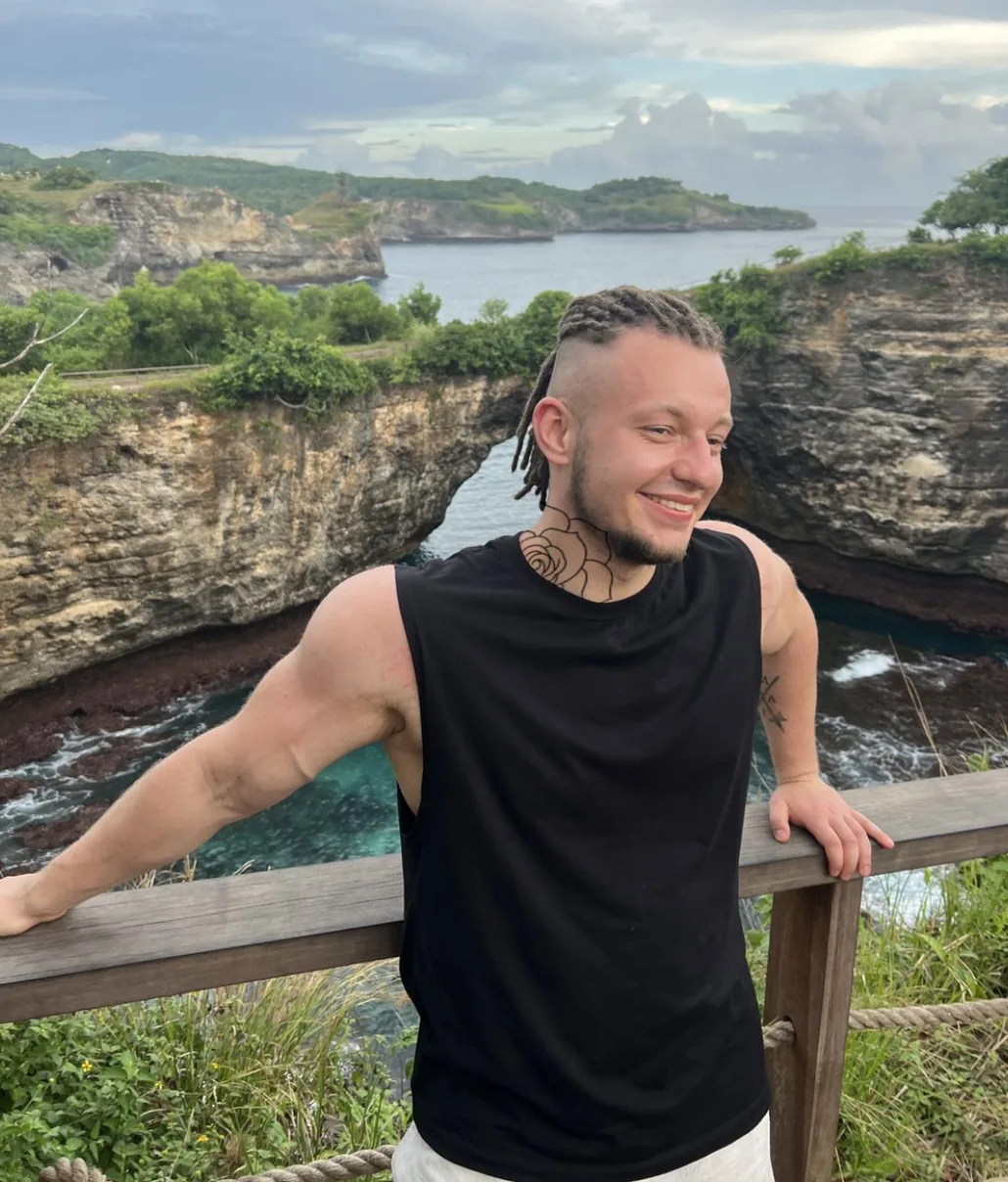
It is honest about what it is: a preview of placement, size and proportion. It will not tell you how a specific artist will draw the piece, how the lines will age, or how colour will read on your skin tone over years. For those questions, ask the artist and read the guides on the idea pages.
Your photo stays private
Before a photo leaves your device, the browser removes the location and camera data embedded in it. The image is sent over an encrypted connection, used only to build the preview, and deleted from server memory as soon as that request finishes. It is not written to storage, not logged and not used to train anything. The privacy policy describes each step.
The preview you export is yours. Save it, send it to a friend, or take it to your consultation.
Frequently asked questions
- Is there a website where I can try a tattoo on my photo without downloading an app?
- Yes, this one. Upload a photo, pick a design and see it on your skin, all on this website in your browser. There is nothing to install and no account to create. It is free to use.
- Do I need to sign up or create an account?
- No. The web try-on needs no signup, no email and no login. You will be asked to pass a quick "I am not a robot" check before your photo is processed, which keeps the free service free.
- Is it really free?
- Yes. Placing a design on a photo and exporting the preview costs nothing and there is no trial that expires. The exported image carries a small InkCraft mark in the corner. The iOS app has a paid tier for AI-generated designs; the website does not sell anything.
- Does it work in a browser on my phone?
- Yes. Safari on iPhone, Chrome on Android and every modern desktop browser work. Most people use it on a phone. The only requirement is WebGL 2, which every current browser has.
- Can I upload my own tattoo design?
- Not on the website yet. Here you choose from the design library, or arrive from one of the tattoo idea pages with that design already loaded. The InkCraft iOS app lets you import any image or drawing and place it on your photo.
- How realistic is the tattoo preview?
- Closer than a flat overlay. The editor builds a 3D read of the body in your photo and wraps the design around it, so it follows the curve of a forearm or the slope of a shoulder and keeps the lighting of your skin. It is a preview of placement, size and proportion, not a promise of how a particular artist will execute it.
- Is this a tattoo simulator?
- Yes, if that is the word you use. A tattoo simulator, a virtual tattoo try-on and putting a tattoo on a photo all describe what this page does: it shows a design on a real photo of a body, wrapped to the skin, so you can judge placement and size before anything is permanent.
- Which body placements can I try?
- Any part of the body your photo shows. Forearm, wrist, upper arm, shoulder, chest, back, ribs, thigh, calf, ankle, hand and neck all work, because you drag the design to where you want it rather than choosing from a fixed list. Photograph the area you are considering and place the design there.
- Do you store my photo?
- No. Location and camera data are stripped from the photo in your browser before anything is sent. The photo is used only to build the preview and is deleted from server memory when that request ends. It is never written to disk, logged or used to train anything. The privacy policy spells this out.
- Can I try a tattoo before my appointment?
- That is the point of it. Try a few sizes and spots on the exact body part, export the version you like and bring it to the consultation. Artists prefer a client who arrives knowing where and how big; it makes the stencil conversation shorter. If the spot is still undecided, the tattoo pain chart by placement says how much each one hurts.
- What's the difference between the website and the app?
- The InkCraft website is the free browser try-on: sample bodies or your own photo, the design library, placement, export. The InkCraft iOS app adds importing your own designs, AI design generation, lettering, saved previews and a 3D model of your own body you can turn around. Start here; get the app if you want those.
- Why does it sometimes take a moment before the editor opens?
- Your photo has to be turned into a 3D surface before a design can wrap around it. That runs on our servers and usually takes a few seconds. The sample bodies are already prepared, which is why they open instantly.
- Is there a limit to how many photos I can try?
- Five new photos every ten minutes per connection, which is plenty for a real session and stops the free service being abused. There is no limit on how many designs you place on a photo once it is ready.
Prefer an app?
The InkCraft app for iPhone does everything the website does and adds the parts a browser cannot: import your own drawing or a design you found, generate new designs from a description, try lettering in dozens of fonts, save every preview, and build a 3D model of your own body you can turn around. The website is the place to start; the app is for going further.